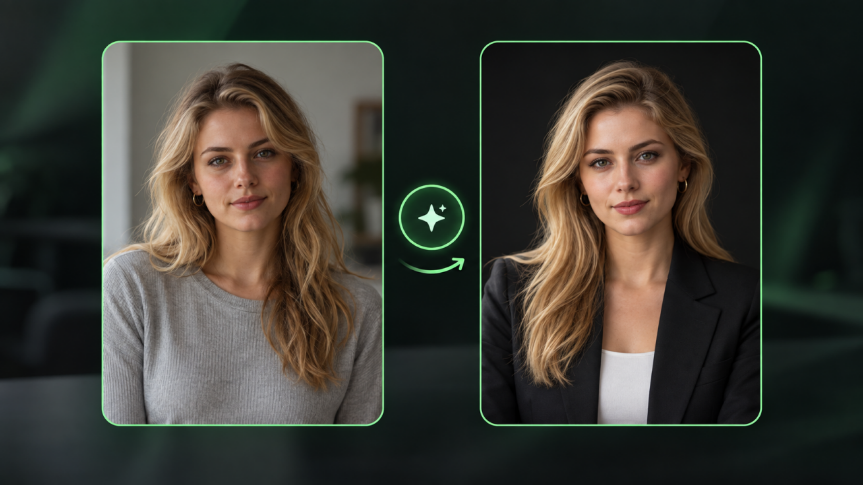
AI headshots can look polished at first glance and still feel wrong up close. The face may look unfamiliar, the skin too smooth, or the styling generic enough to fit anyone. Finding the best AI headshot generator takes more than a clean background and sharp detail. The real difference shows in likeness, styling control, and how easily you can refine a portrait for professional use.
What to Look for in the Best AI Headshot Generator
A good AI headshot generator should make it easy to create a portrait that still looks like you and fits the setting where you plan to use it.
- Likeness and realism: Check whether the face still feels familiar across different results. Natural skin, hair, eyes, and facial proportions matter more than an overly polished finish.
- Reference support: Reference images can help guide facial features, styling, and the overall direction of the portrait.
- Editing flexibility: Look for tools that let you adjust details such as clothing, background, lighting, expression, and framing after the first result.
- Professional fit: The final image should suit its purpose, whether you need it for a company profile, portfolio, speaker bio, or professional social profile.
- Privacy and usage: Check how the service handles uploaded photos and whether its terms fit the way you plan to use the finished image.
5 Best AI Headshot Generators for Professional Headshots
AI headshot tools take different approaches to the same task. Some use a guided, headshot-focused process. Others rely on prompts, reference images, and editing tools. Here is a quick look at five options for professional headshots.
Tool | Good Fit For | Input | Main Strength |
Kling AI | Custom professional headshots | Prompt + reference images | Multi-reference input for facial consistency, with targeted edits to styling, expression, lighting, and framing |
Adobe Firefly | Professional headshots with further creative editing | Prompt + reference image | Dedicated headshot workflow with controls for lighting, background, attire, and style, plus further Firefly editing |
Dreamina | Exploring different portrait styles | Prompt + reference image | Headshot creation with flexible styling and post-generation editing |
Aragon AI | Guided professional headshots | Personal photos | Dedicated headshot generation for individuals and teams |
BetterPic | Multiple polished headshot options | Personal photos + style choices | Broad style selection with post-generation editing |
How Do AI Headshot Generators Compare?
AI headshot generators can differ in how they use reference photos, how much control they provide after generation, and whether they focus on a guided headshot workflow or broader image creation. These differences can matter when you want the final portrait to stay recognizable while also matching a specific professional setting.
Reference Photos and Subject Consistency
Dedicated headshot tools such as Aragon AI and BetterPic typically ask users to upload several personal photos before generating a collection of professional portraits. Adobe Firefly and Dreamina also support reference-led workflows alongside broader image creation and editing features.
Kling IMAGE 3.0 uses multi-reference input to help retain important subject characteristics during re-creation. This gives users more visual context when changing clothing, backgrounds, styling, or composition while keeping the person recognizable.
Control After Generation
A polished first result is useful, but professional headshots often need further adjustment. Kling IMAGE 3.0 lets users modify specific visual details through text instructions, including hairstyle, clothing, background, expression, lighting, framing, camera angle, and color tone.
Other tools also offer post-generation editing, but the workflow varies by platform. Some focus on selecting predefined styles or generated variations, while others connect headshot creation with wider image-editing tools.
Guided Workflow or Flexible Creation
Aragon AI and BetterPic are designed primarily around streamlined professional headshot creation. Kling IMAGE 3.0 takes a more flexible, reference-driven approach, allowing the same source material to be adapted into different professional looks.
This can be useful when creating headshots for company profiles, portfolios, speaker bios, or professional social profiles, especially when you want greater control over how the final portrait is refined.
Professional AI Headshots with Kling IMAGE 3.0
Kling IMAGE 3.0 supports professional portraits generated from text, reference photos, or a mix of both. The AI image generator also gives you room to shape the look of the portrait and adjust specific details after generation.
Keep Facial Features Consistent With Reference Photos
Kling IMAGE 3.0 uses High Feature Retention to extract features from reference images and keep key subject characteristics stable during re-creation. The model supports up to 10 reference images and can retain details such as subject contours, core elements, and tonal qualities across new generations. For a headshot, this gives the reference photo a clear role in guiding how the person appears in the finished image.
Reference Image | Output |
.png?x-oss-process=image/resize,w_1872) | .png?x-oss-process=image/resize,w_1872) |
| Prompt: American-style professional headshot (executive photography style), half-body shot with a blue textured background. Soft natural lighting from a studio, clean and elegant composition. Wears a sleeveless dark blue turtleneck sweater, sharp focus on the subject, background naturally blurred, overall effect professional, refined, and clean. | |
Make Targeted Changes to Headshot Details
Once the main image is established, you may only need to change a specific part of it. Kling IMAGE 3.0 calls this Precise Detail Modification: text instructions can add, remove, or modify elements while preserving the original style, lighting, and texture around the edit.
For headshots, Precise Detail Modification can target a hairstyle, outfit, accessory, background, or another visible element. This kind of focused editing works well when most of the image already feels right. An AI photo editor also gives you a practical way to fine-tune smaller visual details before you settle on the final version.
Input Image | Short Hair | Curly Hair | Bun | Long Straight Hair | High Ponytail |
.png?x-oss-process=image/resize,w_1872) | .png?x-oss-process=image/resize,w_1872) | .png?x-oss-process=image/resize,w_1872) | .png?x-oss-process=image/resize,w_1872) | .png?x-oss-process=image/resize,w_1872) | .png?x-oss-process=image/resize,w_1872) |
Refine Expression, Lighting, and Color Tone
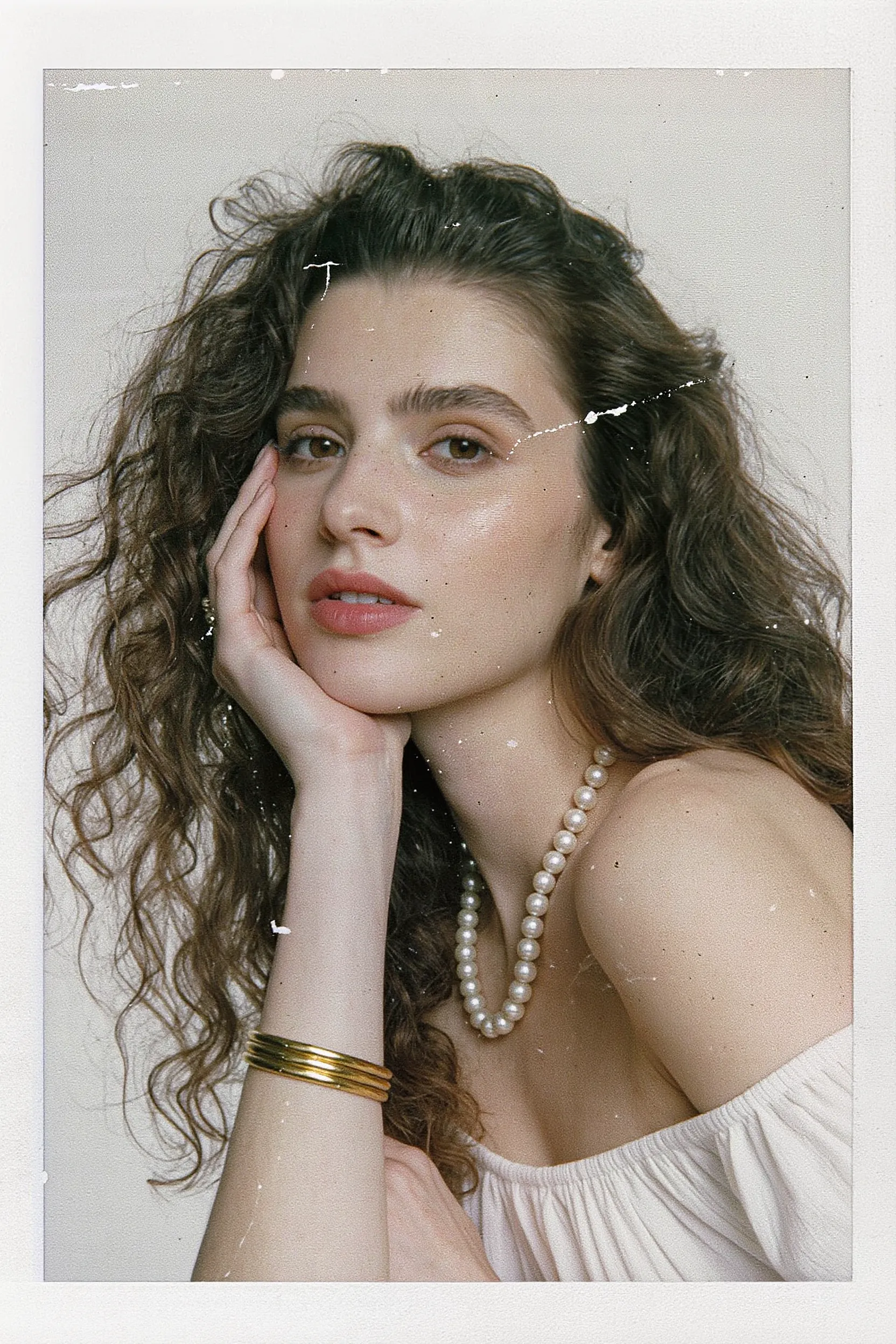
Small changes in expression or lighting can shift the mood of a headshot quite noticeably. IMAGE 3.0 lets you adjust facial expression, try soft or directional lighting, and move between warmer, cooler, brighter, or higher-contrast looks depending on the style you want.
IMAGE 3.0 also uses Accurate Control of Style and Tone to guide color, lighting, and the overall visual treatment. That can help a finished headshot feel consistent with a company profile, portfolio, speaker page, or personal brand.
Input Image | Smile | Glaring | Fear | Laugh | Mischievous |
 | .webp?x-oss-process=image/resize,w_1872) | .webp?x-oss-process=image/resize,w_1872) | .webp?x-oss-process=image/resize,w_1872) | .webp?x-oss-process=image/resize,w_1872) | .webp?x-oss-process=image/resize,w_1872) |
How to Make AI Headshots Look Professional
A professional headshot should still look recognizable when you view it closely and clear when you shrink it down for a profile.
- Choose the right starting point: Use text to image when you want to build a professional look from a written description of the subject, clothing, setting, and lighting. If you already have a clear, current photo, image to image AI can use those existing visual details as the basis for the new headshot.
- Match the styling to the setting: Choose clothing and a background that fit the profile, company page, or portfolio where the image will appear.
- Preview the crop at profile size: LinkedIn recommends letting your face fill about 60% of the frame. Check the image at a small size before you settle on the final crop.
- Inspect the full-size image: Look closely at eyes, teeth, hair edges, glasses, clothing, and background details. Small inconsistencies become easier to notice at full resolution.
- Keep the version that still looks like you: If a result looks polished but unfamiliar, try another variation. LinkedIn also requires profile images to reflect your likeness.
Where Can You Use AI-Generated Headshots?
AI-generated headshots can work across many professional settings, but the same image may not suit every placement. A tight crop can work well for a small profile photo, while a website or speaker page may benefit from a little more space around the subject. If you plan to create AI headshots for several uses, it helps to think about each format before settling on one final image.
Use Case | What Usually Works Well | What to Consider |
Professional networking profiles | Clear face, simple background, close crop | The image should still look recognizable at a small size |
Company bios and team pages | Consistent lighting, framing, and overall style | Match the visual tone of the company website |
Personal websites and portfolios | A polished headshot with a little more room around the subject | Wider framing can give the page more layout flexibility |
Speaker, author, and media bios | Clean composition and high-resolution output | Leave enough space for different crops and event graphics |
Professional social profiles | Natural expression and styling that fits your field | A slightly more relaxed look may suit some platforms and audiences |
If you use an AI business headshot generator for several profiles or brand touchpoints, create a few versions with different crops, backgrounds, or levels of formality. A profile picture maker can also be useful when you want to adapt the final image for professional social profiles or other profile-based placements.
The End
A strong AI headshot should still feel natural, recognizable, and appropriate for the setting where you plan to use it. The best AI headshot generator makes it easier to shape details such as styling, framing, and overall tone, with tools like Kling IMAGE 3.0 giving you added flexibility through reference-based generation and image editing.
FAQs
How Do I Get an AI Business Headshot Generator to Match My Outfit?
Give the generator concrete details about the outfit, such as the garment type, color, fabric, fit, neckline, and accessories. If you want a navy blazer over a white shirt, describe those pieces directly. When the tool supports clothing references, a clear source photo can also help guide a more specific look. Choose an outfit that feels natural for the role and setting where you plan to use the headshot.
Will My AI Headshot Look Like Me?
It can look very close to your current appearance when you start with clear, recent reference photos. Different angles can provide more visual context when the tool supports multiple references. Before using the result professionally, check your facial proportions, hair, glasses, and other recognizable details. Professional networking profiles also expect the photo to reflect your actual likeness.
Can I Use a Free AI Headshot Generator for Professional Photos?
Yes. A free AI headshot generator can be useful for testing styles, trying different looks, or updating a simple profile photo. If you are comparing a free AI professional headshot generator, check what the free tier includes, especially download resolution, watermarks, generation limits, usage terms, and photo handling. The best free AI headshot generator for your needs should make those limits easy to understand.
What Is the Difference Between an AI Headshot Generator and an AI Image Generator?
An AI headshot generator focuses on professional profile photos, with features built around facial references, styling, backgrounds, and headshot compositions. An AI image generator covers a much broader range of image creation and editing, so professional headshots are one of many possible uses. A general image model can make sense when you want more freedom over individual visual details.
Can an AI Professional Headshot Generator Replace a Studio Session?
Sometimes. An AI professional headshot generator can cover everyday needs such as profile updates, company bios, speaker pages, and several variations of the same look. A studio session may suit projects that need live direction, carefully planned lighting, precise brand art direction, or photography for prominent print and media use. The better fit depends on where the final image will appear and how much hands-on direction you want.