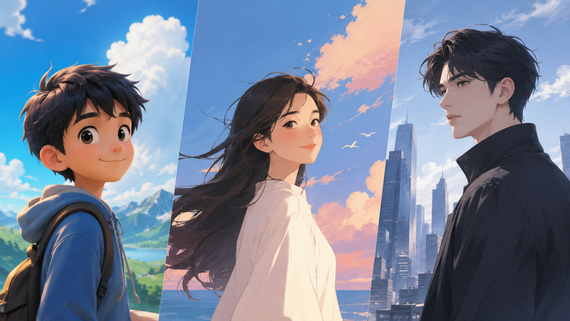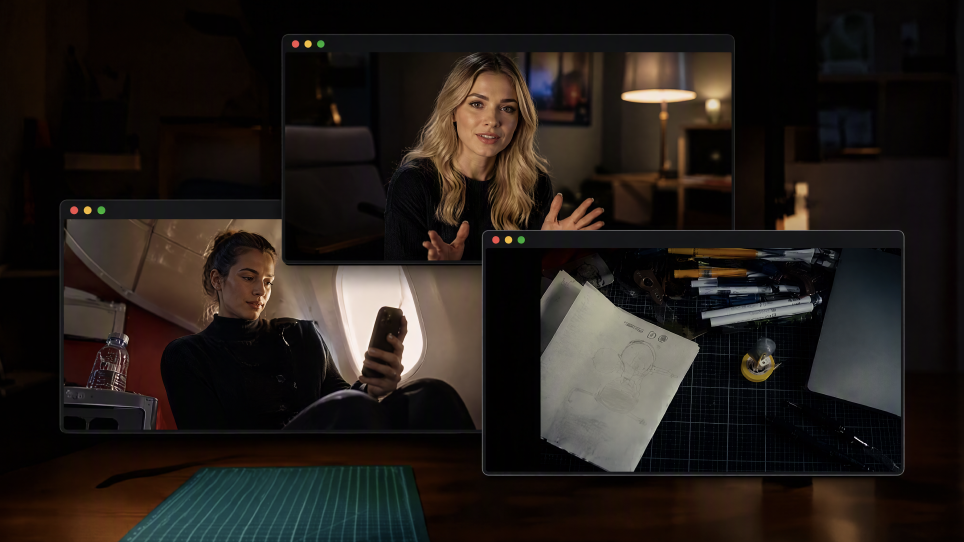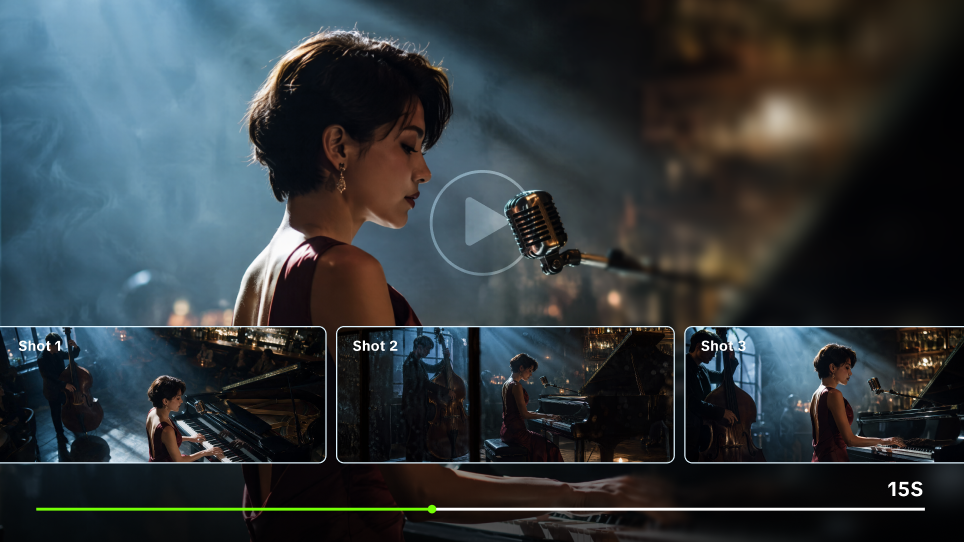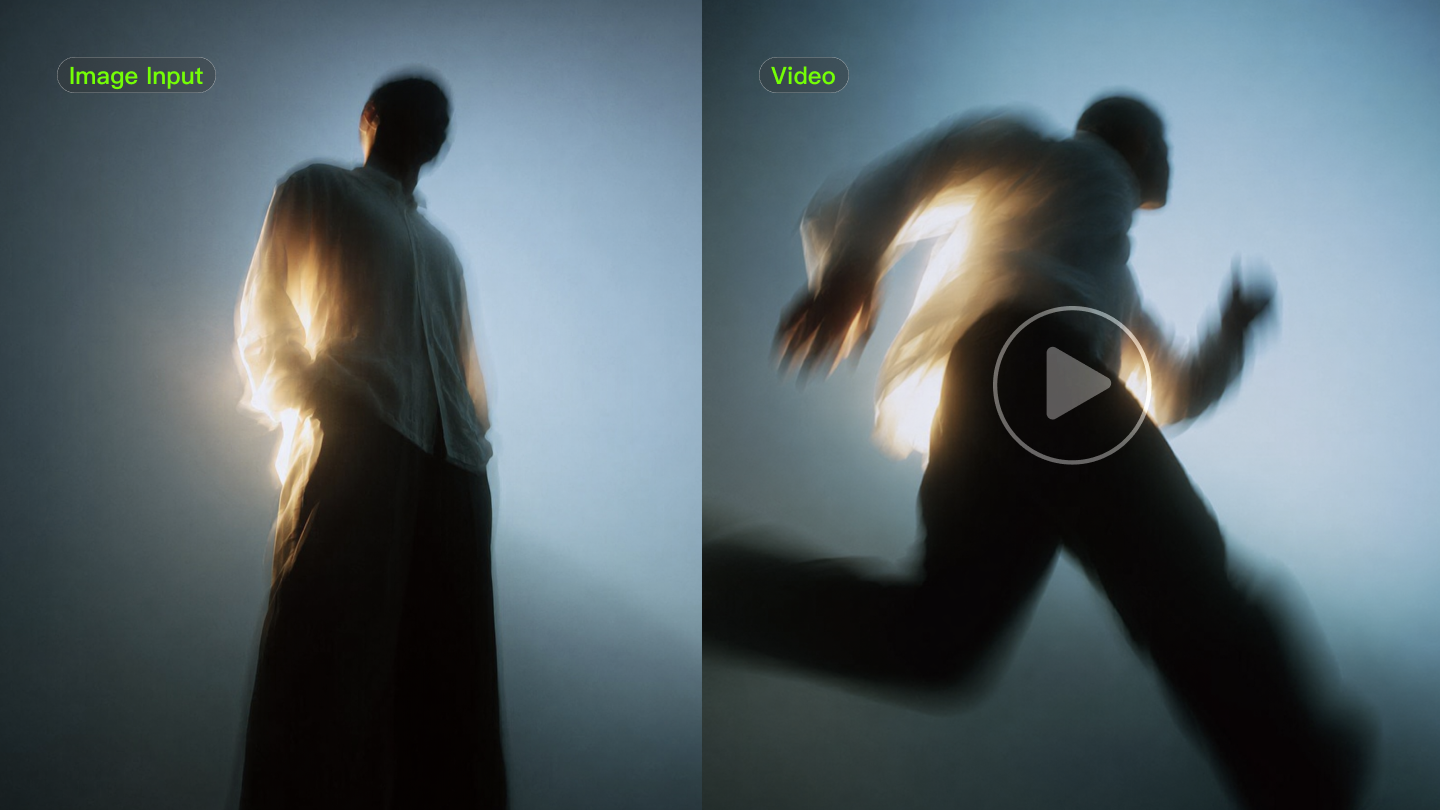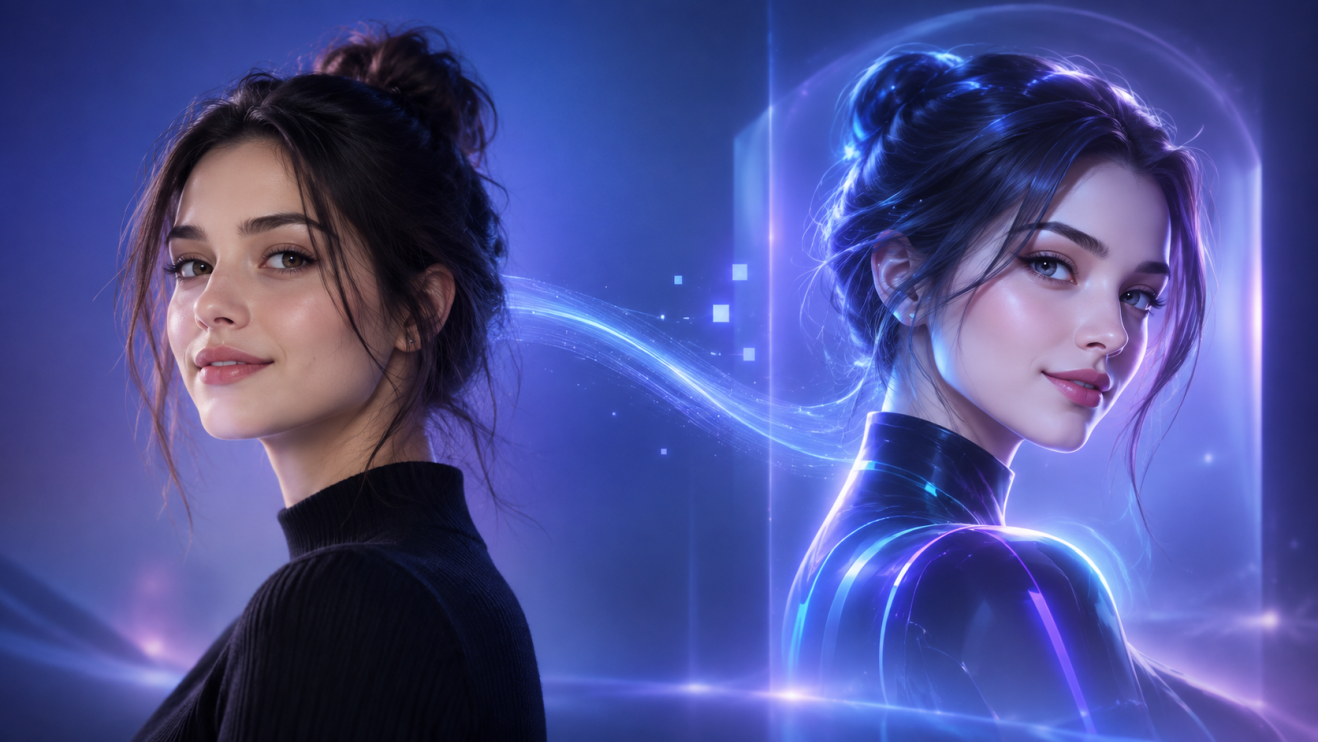
The best AI avatar generator should suit the video you want to make. A character greeting your followers needs a different setup from a presenter delivering a training course. Here, we compare five tools for talking videos, then explore how Kling AI brings a character image, speech, and performance together.
What Is an AI Avatar Video Generator?
An AI avatar video generator creates a digital character that delivers on-screen speech. Depending on the tool, you might start with a photo, a preset presenter, or recorded footage of a real person. The software pairs the character with speech and generates the speaking performance.
This article focuses on videos you generate and share. Live conversational avatars are a separate workflow. With Kling AI Avatar, the starting point is a character image, and a recording or written script gives it something to say.
Video |
  |
| Prompt: With a joyful expression, Santa laughs and interacts with the camera, gesturing with open hands wearing white gloves, exuding holiday cheer and joy, surrounded by festive lights and decorations, creating a powerful performance. |
What Makes the Best AI Avatar Generator?
Start with the kind of video you need. Then compare four practical details:
Character input: A photo is useful when you already have a face in mind. Preset presenters offer a quick starting point. A personal digital twin may involve a separate recording or consent process.
Speech and delivery: The right voice carries more than words. Listen for clear pronunciation, natural pauses, and a pace that feels right for the message. Some tools let you bring a finished recording. Others can read your script aloud or create a reusable version of your voice.
Lip sync and performance: The smallest details make a character feel present. Watch a full sample and notice what happens between the words. Do the lips stay in time? Do the hands and eyes move naturally? A bright hello should feel different from a quiet explanation.
Publishing workflow: Think about where the video will go next. A social post may only need a clean export. A training video might need another language, subtitles, or a format that works with your learning platform.
Five AI Avatar Tools for Talking Videos
Each tool approaches talking avatar videos a little differently. This comparison focuses on character creation, speech, performance, and the wider video workflow rather than declaring one universal winner.
Tool | Best For | Why It Stands Out |
Kling AI | Custom, expressive talking avatar videos | Start with a preset, upload an image, or generate a new character. Add recorded audio or text-to-speech, then guide expressions, gestures, body movement, object interaction, and simple camera behavior with a performance prompt. |
HeyGen | Stock avatars; personal Digital Twins | Combines stock avatars with personal Digital Twins. Its Video Translation workflow supports 175+ languages and dialects, with translated speech and lip-syncing to reach audiences across markets. |
Synthesia | Stock and personal avatars; custom characters | Brings stock, personal, and customizable avatars into a structured video editor. Its workflow is well-suited to explainers, internal communications, and other videos that use a consistent on-screen presenter. |
D-ID | Photo-based and personal avatars | Turns photos into speaking characters and also offers personal avatar options. Separate visual-agent tools extend the experience into real-time conversations for customer-facing or interactive uses. |
Colossyan | Stock and custom presenters | Pairs stock or custom presenters with scripts, multilingual speech, lip sync, and gestures. MP4 and SCORM publishing make it especially relevant to onboarding, courses, and learning-management workflows. |
Kling AI: Expressive AI Avatars and Performance Control
Kling AI shines for creators who want precise control over both an avatar's look and performance. You can start with a pre-made character, reuse a saved preset, upload your own image, or generate a fresh concept using AI Image.
From there, simply feed in audio or type a script for text-to-speech, then fine-tune details like speaking pace and emotional delivery.
A key strength of Kling AI is its focus on performance direction. Instead of basic lip-syncing, you can prompt specific character behavior—from subtle facial expressions and hand gestures to full-body movement, object interactions, and basic camera angles. This makes it a great fit for product launches, creator content, and virtual avatars that need to do more than just read off a script.
HeyGen: Personal Avatars and Video Translation
HeyGen offers stock avatars and personal Digital Twins. A Digital Twin uses footage of a person to build a reusable on-screen presence. The recording helps establish how that avatar looks and performs, so source quality matters.
Its Video Translation feature supports 175+ languages and dialects, with translated speech and lip sync. Treat that as a translation capability when comparing products. HeyGen also supports multilingual avatar creation, but the available voices and options should be checked for the workflow you choose.
Synthesia: Presenters and Business Video Production
Synthesia combines stock and personal avatars with a video editor for business content. Its photo-based personal avatars can be customized, including changes to outfits and backgrounds. It also offers character-building options, so its range extends beyond a fixed presenter library.
For teams creating explainers, internal updates, or a steady stream of presenter-led videos, Synthesia keeps the process easy to follow. The right starting point depends on the project. A stock presenter is ready sooner. A personal likeness takes a little more setup but brings a familiar face to the screen.
D-ID: Photo-Based Videos and Visual Agents
D-ID offers photo-based talking avatars and personal avatar options. A face image can serve as the starting point for spoken content, making photo-to-video creation a useful benchmark for this list.
The company also offers real-time visual agents that respond in real time during conversations. Those agents serve a different purpose from a finished video. If your goal is to publish a clip, compare its video-creation workflow; if you need live interaction, evaluate the agent product separately.
Colossyan: Avatar Videos for Learning
Colossyan builds its workflow around training content. Users can choose from stock or custom presenters, add scripts, and generate videos with speech, lip-sync, and gestures. Multilingual content is part of that learning workflow.
A training video has somewhere to go after it is made. Colossyan can export it as an MP4 or prepare it for a learning management system with SCORM. That makes it easier to place the finished video inside an onboarding program, a course, or a series of lessons employees can return to.
How to Create an AI Avatar Video with Kling AI
Have a character and a few lines ready. The AI avatar generator brings image, speech, and performance into a single workflow.
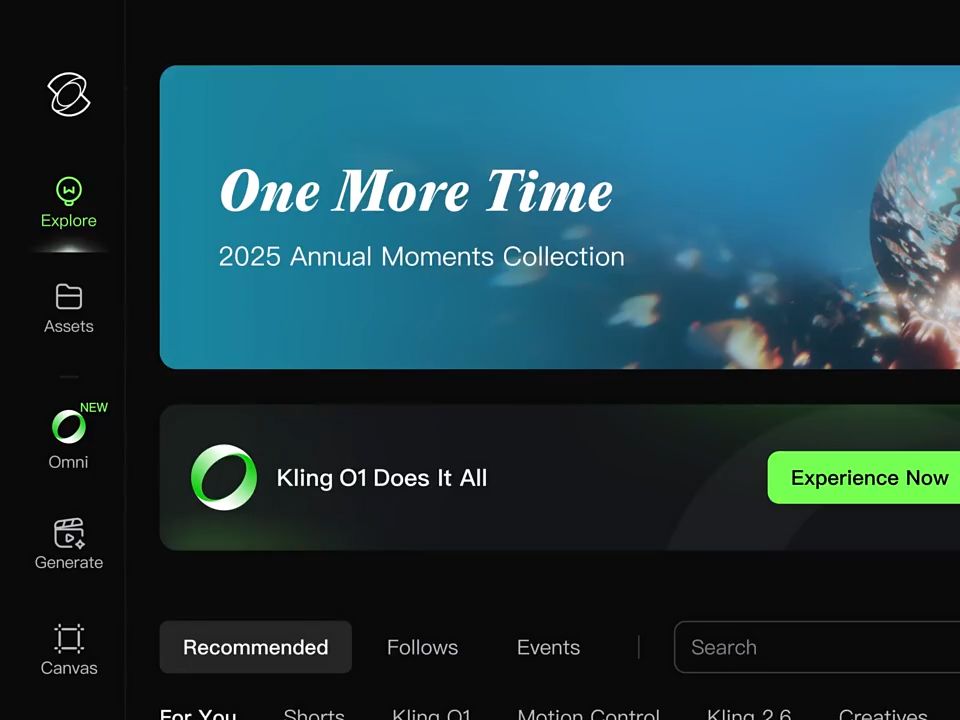
Step 1: Choose Your Character
Pick a character from the Avatar Library, return to a saved avatar, or upload an image. You can also use AI Image to create someone new. Choose a clear view of the face and a composition that leaves room for the performance you have in mind.
Step 2: Add the Voice
Upload a finished recording, or type the lines and choose a text-to-speech voice. Adjust the pace and emotion to fit the scene. Read the script aloud first: a sentence that feels awkward to say may need a simpler turn of phrase. Use punctuation to give the speech room to breathe.
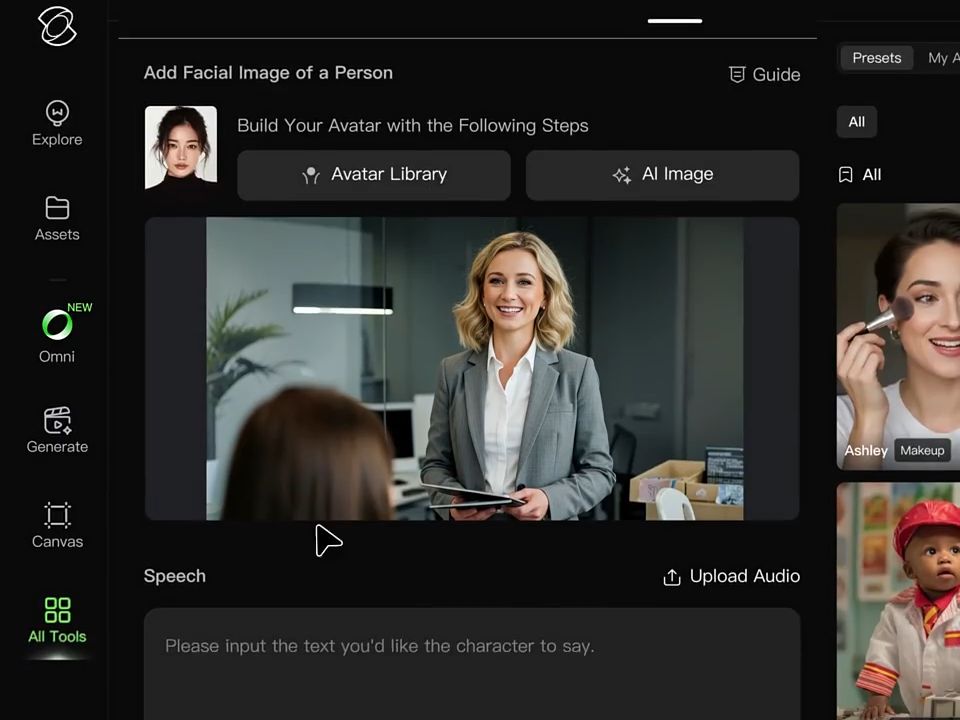
Step 3: Shape the Performance
Describe the expressions and movements you want to see. Write your own direction, or begin with one of Kling AI’s suggestions. Keep it simple and natural. A warm smile, a glance at the camera, or a gentle hand gesture can give the character just the right presence.
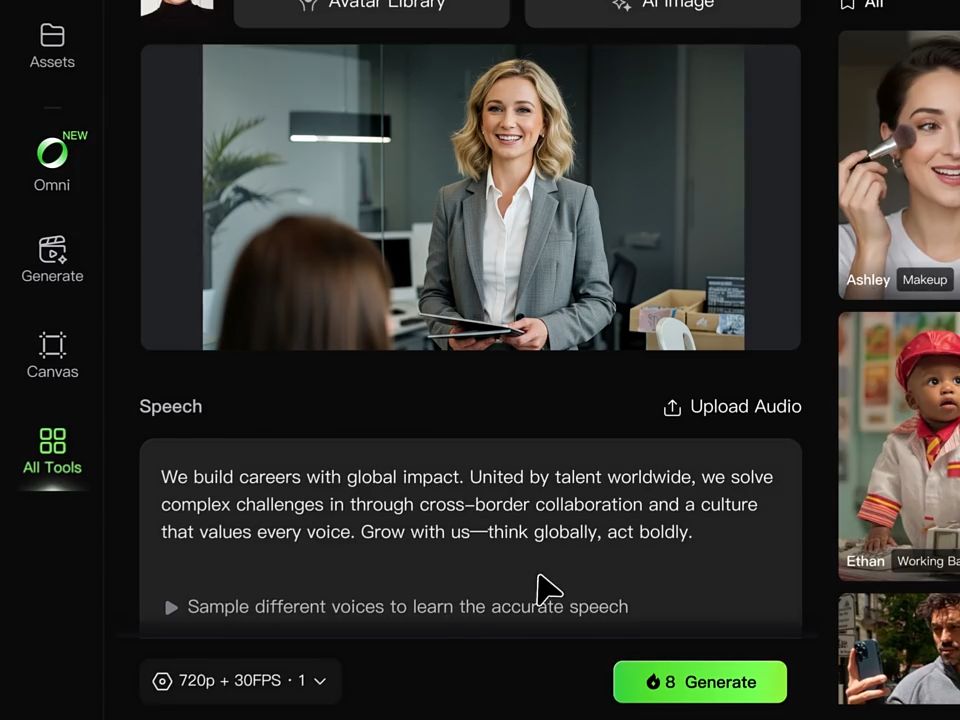
Finally, generate the video, then watch it with sound. Check the pronunciation, pauses, mouth movement, and hands. Refine the part that distracts from the message before adding more action.
Prepare Your Character with Kling IMAGE 3.0
The face comes before the performance. If you want to create your own avatar look, IMAGE 3.0 can help prepare the image you will use in the video.
Step 1: Set the Look
Use text to image to describe an original character or begin with your own portrait. Add a few details about the clothing, lighting, and background.
Step 2: Refine With References
A hairstyle you like. An outfit that suits the character. Bring those details together with up to 10 reference images in Kling IMAGE 3.0 and describe what you’d like to take from each. To try a different look, use image to image to explore a new visual style. Once the character looks right, choose the finished image for your Avatar video.
Step 3: Take the Image Into Avatar
Choose the finished character image, then upload it in the Avatar workflow. Add the voice and performance there. IMAGE 3.0 prepares the appearance; Avatar creates the speaking video.
Image |
.png?x-oss-process=image/resize,w_1872) |
| Prompt: Use @Elements 1 as the main character and facial identity. Reference @image 1 for the earrings, @image 2 for the upper-body outfit, @image 3 for the pants, and @image 4 for the electronic wrist screen. Combine these elements into a cohesive futuristic AI character. Keep the character recognizable while giving her a sleek silver-gray cyber outfit with neon green lighting, advanced wearable technology, realistic materials, and detailed textures. Create a strong sci-fi atmosphere with cinematic blue lighting and a high-end futuristic game character aesthetic. |
The End
The best AI avatar generator is the one that fits the message you want to share. Compare the character setup, listen to the voice, and watch how the performance holds together.
Kling AI gives you a place to bring those pieces together. Choose a face. Give it a voice. Add a little personality, then see how your next idea feels on screen.
FAQs
What Is the Best AI Avatar Generator for Talking Videos?
The best AI avatar generator is the one that brings your character and message together naturally. Kling AI lets you begin with an image, add a voice, and guide the character’s expressions and movement. Before choosing a tool, watch a complete video sample and consider how well its creative process fits your project.
Can I Create an AI Avatar Video From a Photo?
Yes. An AI avatar generator from a photo can use a portrait as the visual starting point for a talking video. In Kling AI, upload the image, add recorded audio or a script, and describe the performance. Review the generated face and movement before sharing the result.
Can I Use My Own Voice in the Kling AI Avatar?
Yes. You can upload a recorded voiceover and use it as the avatar's speech track. This uses your supplied recording; it does not, by itself, create a cloned voice for future scripts. If you prefer to type the dialogue, use the available text-to-speech voices and adjust the delivery.
Can I Create a Custom Character Instead of Using a Preset?
Yes. Kling AI lets you upload a character image or generate one with AI Image. You can also prepare the appearance separately with IMAGE 3.0, using text and references. Once the image is ready, add it to the Avatar workflow and build the speaking performance around it.
Can I Reuse the Same Avatar for More Videos?
Yes. Kling AI's Generate My Avatar option lets you reuse a character image with frequently used voice and performance settings. That makes it easier to continue a series with the same on-screen identity. Review each new result, since a different script or performance direction can change how the character moves.