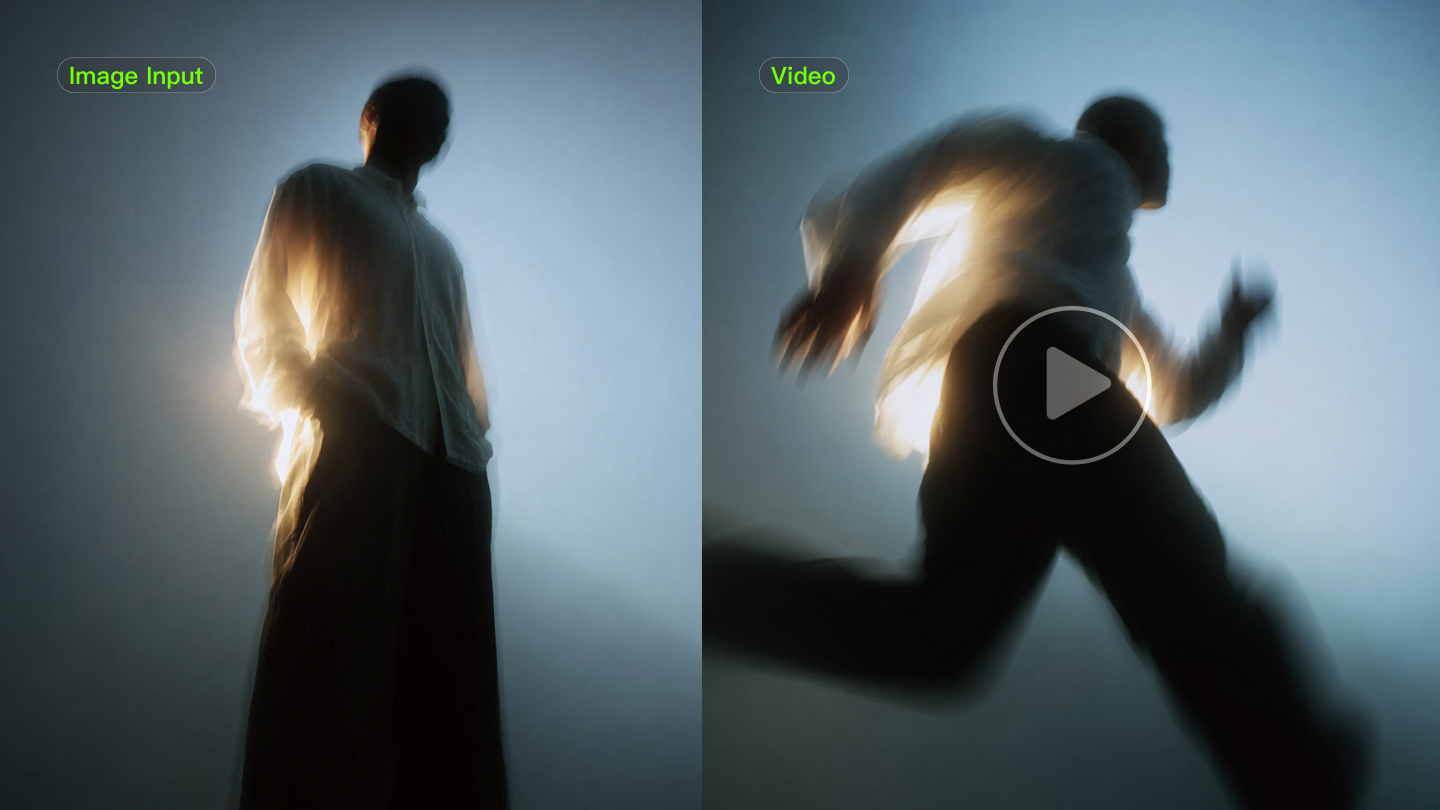
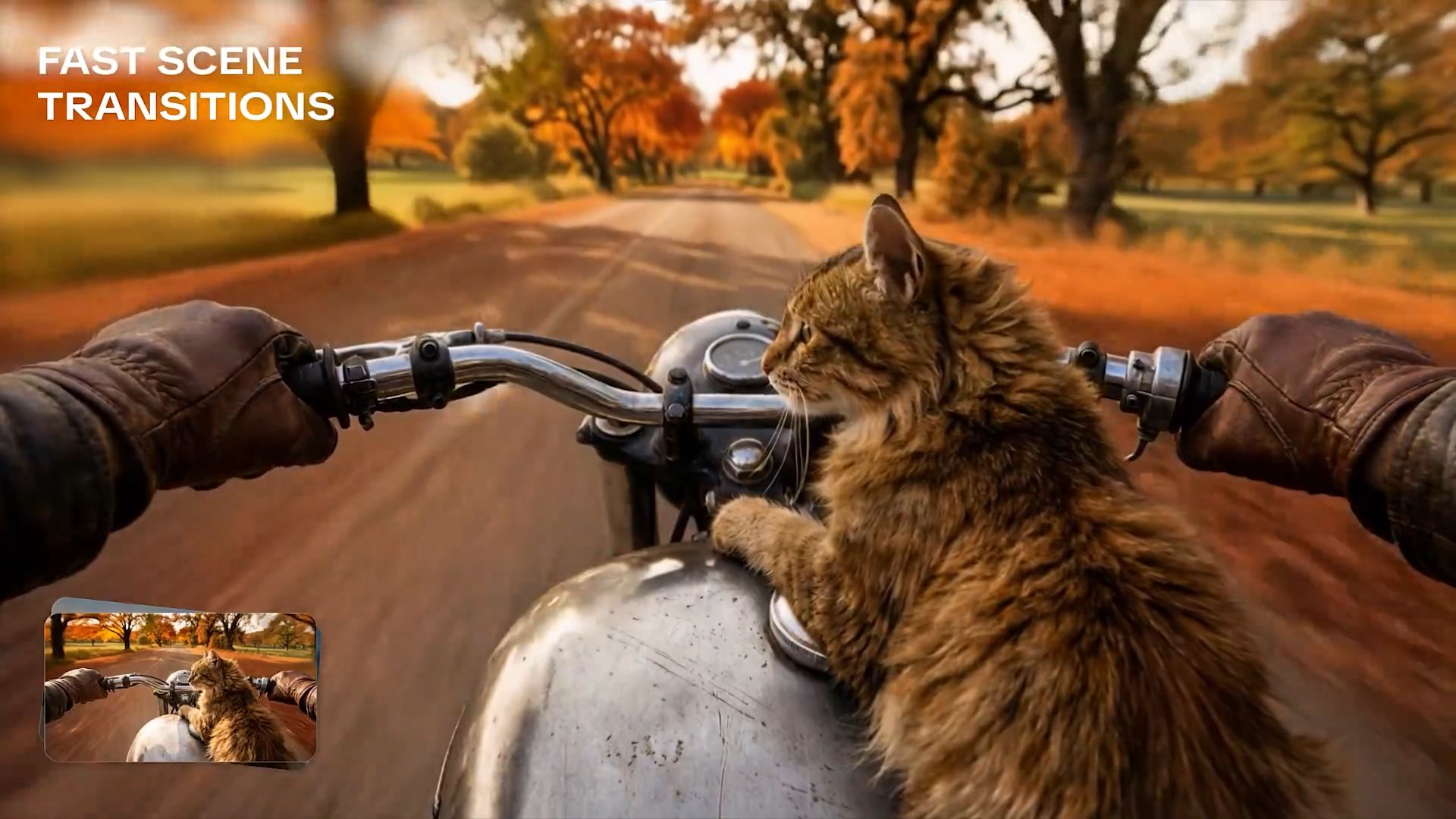
Image-to-video AI Generators turn static images into moving scenes with action, atmosphere, and storytelling. A landscape photo can become the opening shot of a cinematic scene, a character illustration can enter a new setting, and a portrait can develop into a short visual story through movement, expression, and sound. But creating a convincing video is not only about adding motion.
The best image to video AI tools need to preserve the details that make the original image valuable: the subject should remain recognizable, products should preserve their original shape and details, and every movement should feel natural within the scene.
In this guide, we compare 10 of the best image-to-video AI generators in 2026 across motion quality, consistency, audio capabilities, creative control, and real-world use cases, including how Kling AI combines Multi-Shot creation, Native Audio, and character consistency to turn still images into more complete video scenes.

How We Compared the Best Image-to-Video AI Generators?
We compared each tool based on the factors that most affect the final result, including how well it preserves the original image, follows creative direction, and handles different types of video projects.
For this comparison, we reviewed each tool’s current capabilities, official product information, available controls, and practical use cases.
Comparison Area | What We Look At |
Motion Quality | How naturally characters, objects, and camera movements develop from the original image. |
Visual Consistency | How well the generated video keeps important visual details and whether the same person, character, or object remains recognizable during movement and scene changes. |
Creative Control | Available options for guiding the result, including reference images, camera instructions, keyframes, shot planning, and motion prompts. |
Audio Capability | Whether the tool can generate dialogue, ambience, sound effects, or synchronized audio as part of the video creation process. |
Use Case Fit | How each tool supports different needs, from quick social clips and product visuals to character videos and cinematic projects. |
The 10 Best AI Image-to-Video Generators in 2026
The best image-to-video AI generator depends on what you want to create. Some focus on realistic movement, some give creators more control over scene development, while others are better suited for short-form content or reference-based projects. The table below compares the key capabilities of each tool across the areas that matter most for image-to-video creation.
Brand / Model | Motion Quality | Visual Consistency | Creative Control | Audio Capability | Best Use Cases |
| Natural movement for characters, objects, and camera motion | Keeps faces, products, and characters recognizable through movement and multi-shot scenes | Multi-Shot, Custom Multi-Shot, Element Reference, Start & End Frames | Native audio with dialogue, ambience, sound effects, multilingual speech, and multi-character speaker matching. | UGC videos, product visuals, cinematic scenes, and branded content | |
Google Veo | Realistic movement with detailed environments and scene behavior | Maintains overall scene coherence and visual realism | Prompt-based scene direction and visual guidance | Native audio with dialogue, sound effects, ambient noise, and music. | Film-style scenes, realistic environments, and visual storytelling |
Runway | Smooth motion with guided scene development | Maintains overall visual structure during creative changes | Camera instructions, references, and production-oriented controls | Separate audio generation tools for speech, sound effects, and music; Gen-4.5 image-to-video does not list native audio. | Professional creators, marketing videos, and controlled shots |
Seedance | Motion guided by multiple references and scene instructions | Uses multiple references to guide characters and visual elements | Multi-reference inputs and scene planning | Joint audio-video generation with dual-channel audio, including dialogue, sound effects, ambience, and background music. | Storytelling projects and multi-scene concepts |
Luma AI | Dynamic camera movement and changing perspectives | Maintains overall scene structure during visual exploration | Camera-focused controls and motion guidance | Audio support varies by model; | Concept videos, product reveals, and camera-focused scenes |
Adobe Firefly | Extends existing images and designs into video scenes | Works with existing creative assets inside Adobe workflows | Integration with Adobe creative tools and design processes | Separate tools for speech, music, and sound effects; native audio depends on the selected video model. | Brand content, marketing assets, and design projects |
Hailuo AI | Supports different motion styles from varied inputs | Uses image-based references and creative inputs to guide results | Combines images, video, text prompts, and other inputs | MiniMax H3 supports jointly generated native stereo sound. | Experimental projects and mixed-input video creation |
Vidu | Supports stable movement for recurring subjects | Reference-to-video workflows help maintain character identity | Reference images and subject guidance | Native audio-video generation with dialogue and sound effects | Character videos and reference-based projects |
Pika | Fast motion effects and image transformations | Better suited for creative changes than strict detail preservation | Effects, transformations, and quick adjustments | Separate Pika Audio tools can generate synchronized soundtracks, speech, music, ambience, and sound effects. | Social clips, short videos, and creative experiments |
PixVerse | Stylized movement and animated effects | Focuses more on visual style than strict image preservation | Artistic effects and visual transformations | PixVerse V6 supports native audio, including dialogue, sound effects, and ambient sound. | Stylized videos, animations, and effect-based content |
Which Image-to-Video AI Generator Is Best for Your Needs?
After comparing the main capabilities of each tool, finding the best image-to-video AI option starts with understanding what you want to create. A product video, a cinematic scene, and a character story all require different approaches. Use the table below to find the tool that matches your project goals.
Project Goal | Recommended Tool | Why |
Best for realistic motion and subject consistency | Kling AI, Google Veo | Suitable for projects where people, products, or characters need to stay recognizable while the scene develops. |
Best for cinematic scenes and creative direction | Kling AI, Runway | Fits creators who want to shape how a scene develops, from visual ideas to the final shot. |
Best for character-based storytelling | Kling AI, Vidu, Seedance | Useful for projects where characters need to appear across different scenes while maintaining a consistent visual identity. |
Best for product and brand videos | Kling AI, Adobe Firefly | Works well for turning existing visuals into branded video content while keeping the original creative direction. |
Best for social clips and creative effects | Kling AI, Pika, PixVerse | A good fit for short-form content, visual transformations, and creative experiments designed for social platforms. |
Best for camera-focused scenes | Kling AI, Luma AI | Suitable for projects where camera movement, perspective changes, and visual exploration are the main focus. |
Best for reference-based creative projects | Kling AI, Hailuo AI | Useful when images, references, and text instructions work together to guide the final video. |
Why Kling Stands Out for Image-to-Video Creation?
Whether you are making your first AI video, creating brand content, or preparing short clips for platforms like TikTok and Instagram, the right image-to-video tool needs to handle more than simple animation. It should keep important parts of the original image recognizable, make movement feel natural, and let you guide what happens in the scene.
Kling VIDEO 3.0 brings these capabilities together with subject consistency, Multi-Shot scene development, Native Audio, and high-quality 4K video output. It helps you turn a single image into a complete video scene while giving you more control over the subject’s movement, audio, and overall direction.
Keep Subjects Recognizable Through Movement
One of the biggest challenges in image-to-video creation is keeping the main subject recognizable after movement begins.
A portrait may look accurate in the first frame but change as the person turns, the camera moves, or the scene develops. A product may keep its overall shape while losing important details such as materials, colors, or design elements.
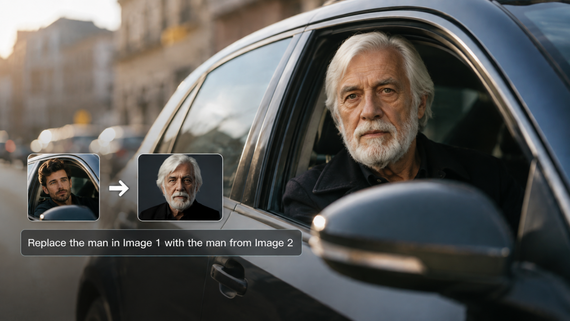
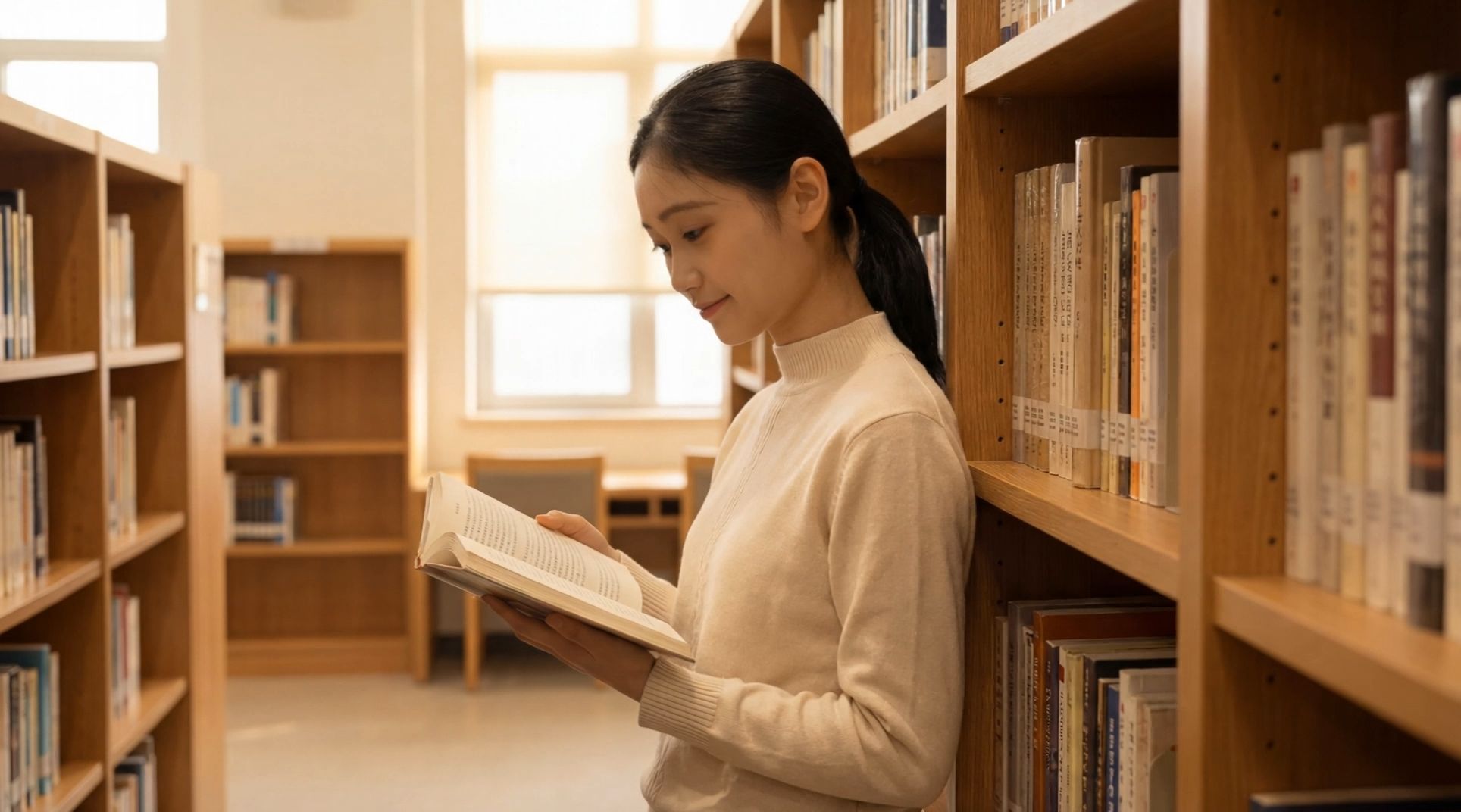
Kling VIDEO 3.0 supports multiple image references, allowing you to provide different views of the same subject. By using reference images from different angles, the model can better understand important visual features of a person, product, or character and help maintain those details throughout the video.
This is especially useful for:
- a brand representative who needs to maintain a consistent appearance;
- products that require accurate visual details;
- characters that appear across multiple scenes.
Image | ||
.png?x-oss-process=image/resize,w_1872)
| ||
Character Reference | ||
.png?x-oss-process=image/resize,w_1872) | .png?x-oss-process=image/resize,w_1872) | .png?x-oss-process=image/resize,w_1872) |
| Prompt: The camera gradually moves around to the front of the girl, who then lifts her head and smiles warmly at the camera, as if seeing an old friend after many years. | ||
Video | ||
 | ||
Create Natural Audio and Multi-Character Dialogue
A video scene feels incomplete when the visuals and sound do not match. Kling VIDEO 3.0 includes Native Audio, generating dialogue, ambience, and sound effects together with the video. It supports multiple languages, including Chinese, English, Japanese, Korean, and Spanish, with different accents and dialects.
Image |
.png?x-oss-process=image/resize,w_1872) |
Prompt: On a small station shrouded in morning mist, the boy smiled and handed over the bento: 「急いで作ったけど、大丈夫? お母さんのレシピだよ。」 The girl took it with a smile: 「うん、きっと美味しい! 到着したら LINE するね。」 |
Video |
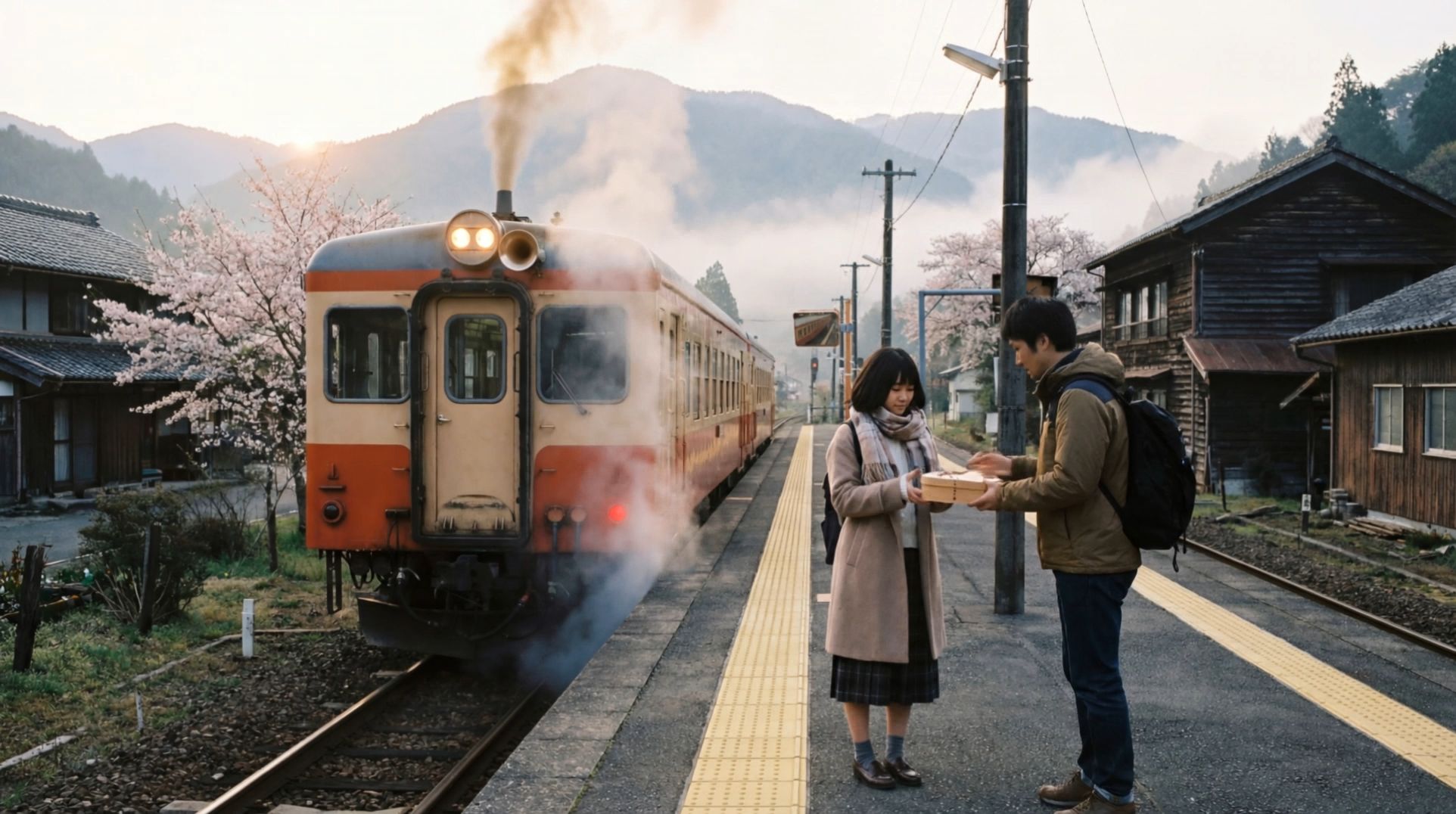 |
Native Audio generates dialogue together with corresponding lip movements. For creators who want to add or replace speech after a video has been generated, Kling AI also provides a separate Lip Sync tool that synchronizes a character’s mouth movements with the selected audio.
Create Multi-Shot Videos with Intelligent and Custom Shot Planning
A single image can capture a moment, but complete storytelling often requires changes in framing, perspective, and shot structure.
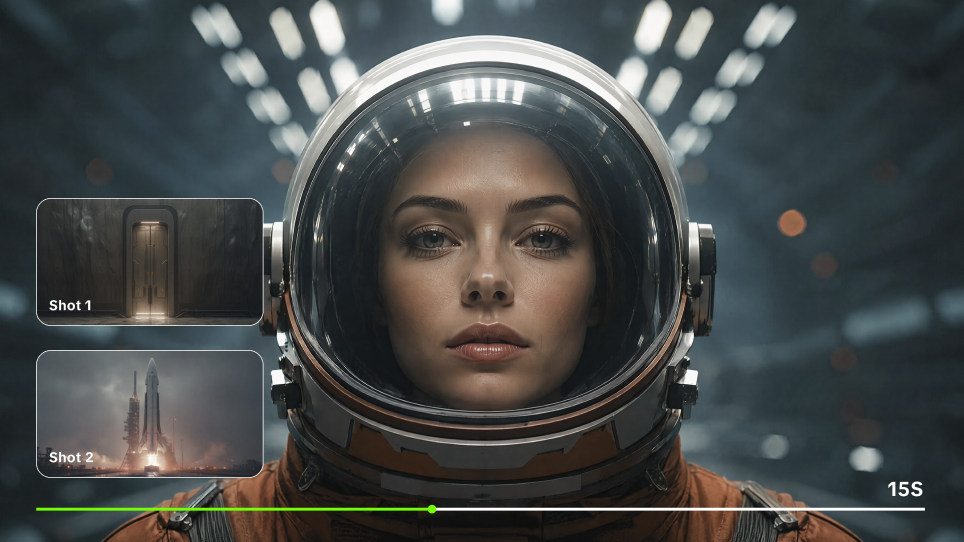
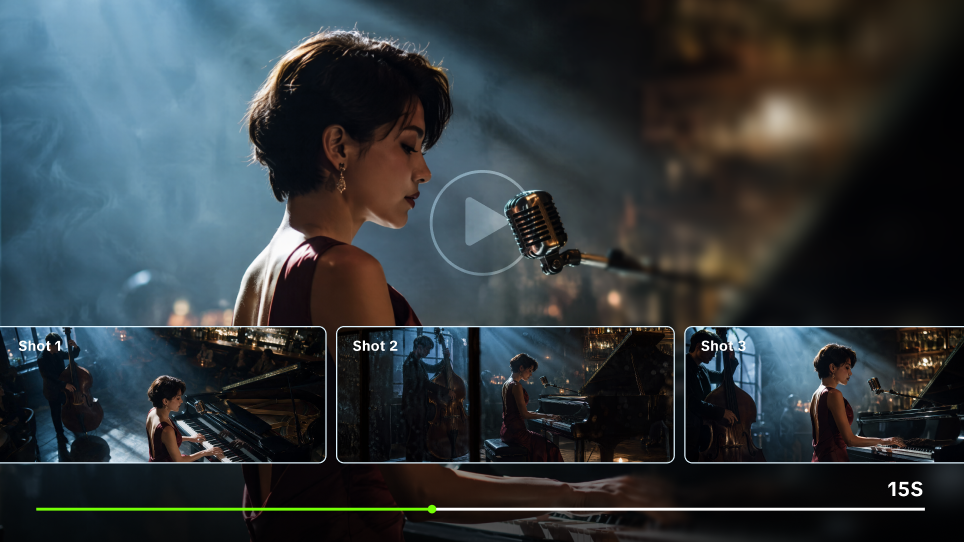
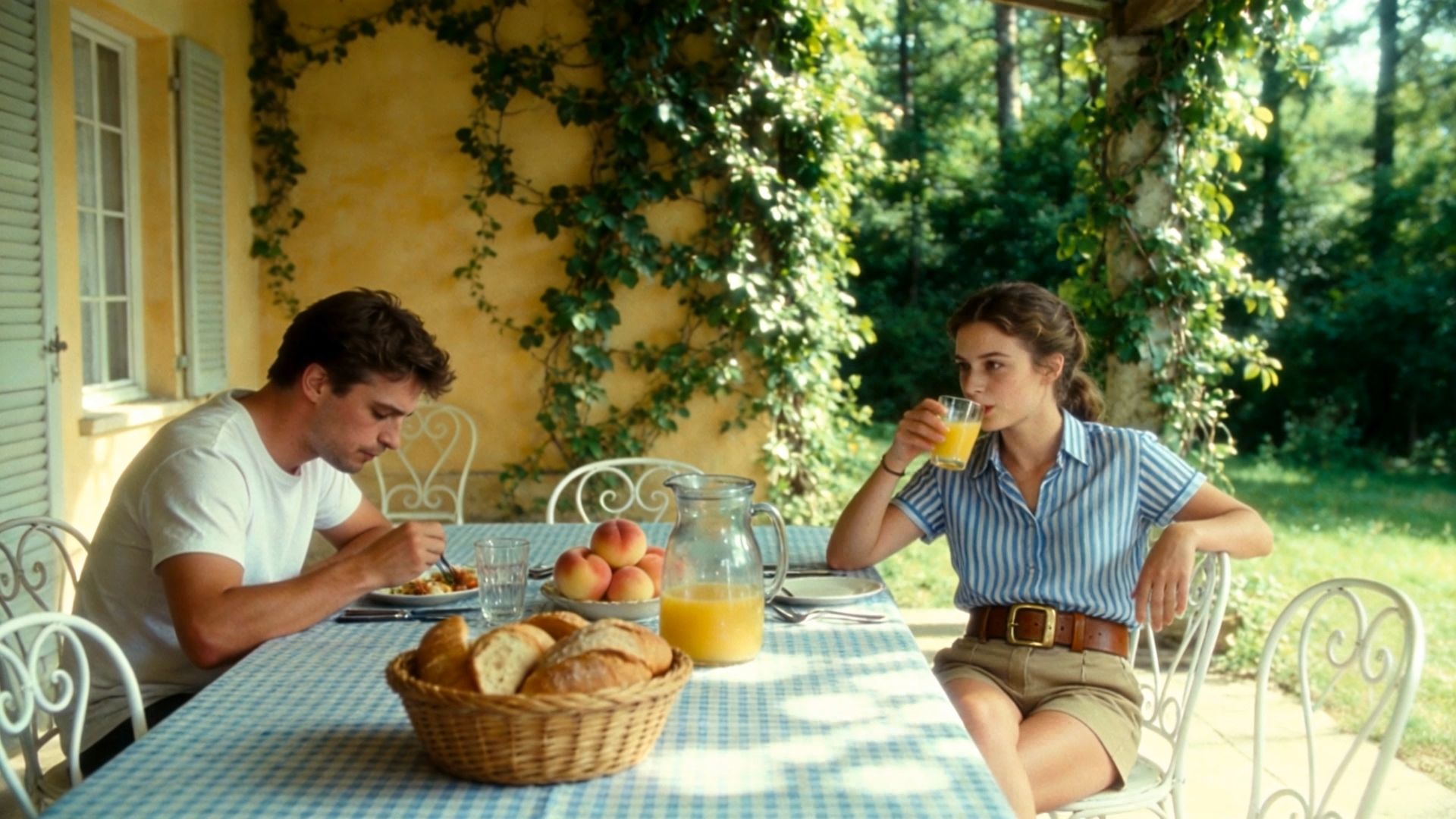
Kling VIDEO 3.0 series supports Multi-Shot, which intelligently plans scene transitions, shot composition, and camera angle changes based on your prompts. The model analyzes your description to create connected shot sequences and can adjust the structure when a scene works better as a single continuous shot.
For creators who need more control, Custom Multi-Shot lets you define the content, duration, and structure of each shot. You can decide how each scene develops while maintaining a consistent visual direction throughout the video.
For example:
A character scene can move from:
- an establishing shot;
- to a closer reaction shot;
- to a final close-up shot.
A product video can move from:
- a wider introduction shot;
- to a detailed product view;
- to a final presentation shot.
With flexible shot planning and control, Kling VIDEO 3.0 series helps creators:
- quickly create videos with connected storytelling;
- precisely control shot pacing and video structure;
- produce product showcases, cinematic transitions, branded videos, and creator-led UGC content.
Image | Video |
.png?x-oss-process=image/resize,w_1872)
| 
|
How to Turn an Image into a Video With Kling?
Creating an image-to-video clip starts with a clear idea of what you want to keep and what you want to change. Follow these steps to create an image-to-video clip with Kling VIDEO 3.0.
Step 1: Upload Your Image
Start with the image you want to animate. You can use a portrait, product photo, character design, illustration, or landscape as the starting point.
Choose an image with clear details and a visible subject. A well-defined face, product shape, or visual style gives Kling VIDEO 3.0 a stronger foundation for creating natural movement while keeping the original look.
For better subject consistency, you can add multiple image references when needed. These references help Kling VIDEO 3.0 preserve important details when the subject appears from different angles, moves through the scene, or continues across multiple shots.
Step 2: Describe the Motion You Want
Your image shows what exists in the scene, while your prompt explains what happens next.
A strong image-to-video prompt can follow this structure:
Subject + Action + Expression + Camera Movement + Scene Change + Visual Style
A simple prompt can define the basic action, while a more detailed description helps Kling VIDEO 3.0 better control the timing, direction, and visual style of the final video.
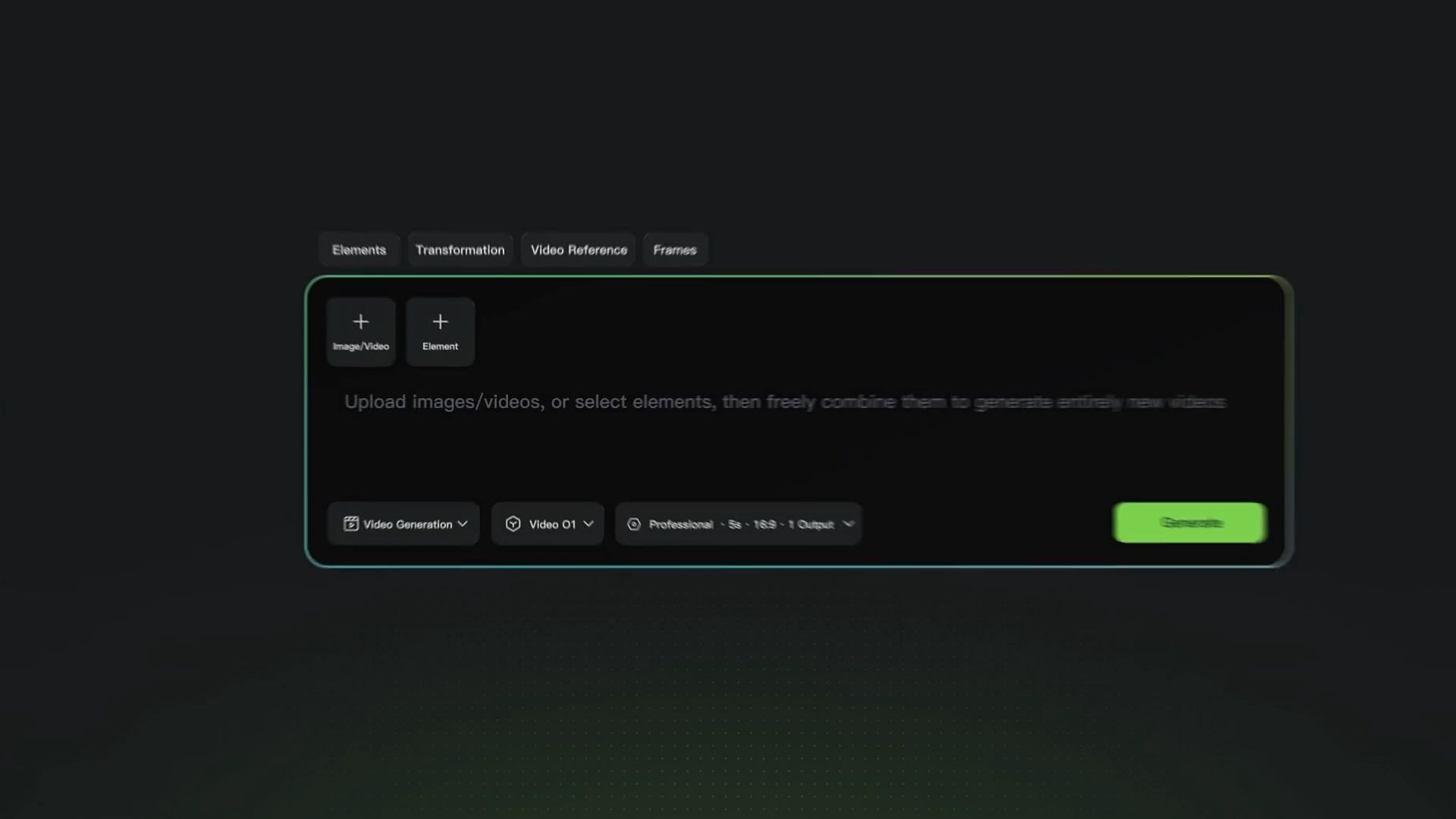
For more control over the final result, you can use Kling VIDEO 3.0’s creative tools. Enable Multi-Shot to let the model intelligently plan scene transitions, shot framing, and camera movements based on your prompt. When you need precise control, use Custom Multi-Shot to define the content, duration, and structure of each shot. If your video requires dialogue, ambience, or sound effects, enable Native Audio to generate audio together with the visuals.
Step 3: Generate and Export Your Video
Choose the final output settings based on your project needs, then generate your video. Kling VIDEO 3.0 supports up to 4K video output, videos up to 15 seconds, multiple aspect ratios such as 16:9, 1:1, and 9:16, and multiple outputs for different creative projects and platforms.
The End
The best image-to-video AI is not defined only by movement. It should bring images to life with natural motion while keeping the subject recognizable, preserving important visual details, and giving creators control over how the scene develops. Based on these key needs, Kling AI combines motion control, subject consistency, Native Audio, and native 4K quality into a complete image-to-video workflow. Upload an image, describe the movement and scene changes you want, and transform a static frame into a cinematic video with motion, sound, and storytelling.
FAQs
What Is the Best Image to Video AI in 2026?
The best image-to-video AI in 2026 depends on the type of video you want to create. For projects where you want natural movement, recognizable subjects, Native Audio, and high-quality output, Kling AI offers a balanced workflow for turning still images into more complete video scenes. You can choose the right tool by looking at the factors that matter most for your project, such as motion quality, consistency, creative control, and audio capabilities.
Can AI Turn Any Photo Into a Video?
Yes. AI video generators with image-to-video capabilities can bring many types of photos to life, from portraits and product images to illustrations and landscapes. The result depends on the details in the original image and the movement you want to create. With Kling, you can describe how the image should move or change while keeping the important features that make the original photo recognizable.
Can Image-to-Video AI Generate Audio and Dialogue?
Yes, some image-to-video AI tools can create audio and dialogue as part of the video generation process instead of adding sound afterward. This is especially useful for scenes with conversations, character interactions, or environmental sounds. Kling VIDEO 3.0 uses Native Audio to generate dialogue, ambience, and sound effects together with the video, while matching characters with their corresponding lines in multi-character scenes. It also supports multiple languages, accents, and dialects to create more natural conversations.
Can AI Keep the Same Person or Character Consistent?
Yes, AI can help maintain the identity of a person, character, or object throughout a video, especially when the model can use visual references. Consistency becomes more challenging when the subject moves, appears from different angles, or needs to remain consistent across multiple shots. Kling VIDEO 3.0 uses multiple image references to guide key visual details, helping subjects stay recognizable as the scene develops.